Cursor AI 2026: The Future of Coding with Agentic Workflow and Composer 2.5
Hello everyone! Are you tired of constantly switching between StackOverflow and AI chatbots while coding? If so, today we are going to talk about Cursor AI, which is creating massive waves in the coding world in 2026.
 Cursor AI 2026 Hero Banner with Cyberpunk aesthetic
Recently (May 2026), Cursor rolled out several massive and groundbreaking updates. It is no longer just a simple AI Assistant, but has evolved into a fully Agentic IDE. This means you no longer just generate code; instead, you work like an Architect while Cursor's AI Agents handle the entire Project for you.
In this tutorial, we will deeply explore Cursor AI's new features, Composer 2.5, Multi-repo Automations, and its MCP Support. So let's get started without further ado!
1. What is Cursor AI and How is it Different from VS Code?
Cursor AI is essentially an AI-native IDE (Integrated Development Environment) built directly upon the foundation of VS Code. If you are already using VS Code, switching to Cursor will be completely seamless. All your Extensions, Themes, and Settings are imported with a single click.
But the biggest difference is its AI Integration. In standard IDEs, AI is merely an "Add-on," but in Cursor, AI is right at the core. It understands the entire Context of your Codebase. When you ask a question or tell it to fix a Bug, it doesn't just scan a single file but analyzes your entire Project to give a precise and accurate answer.
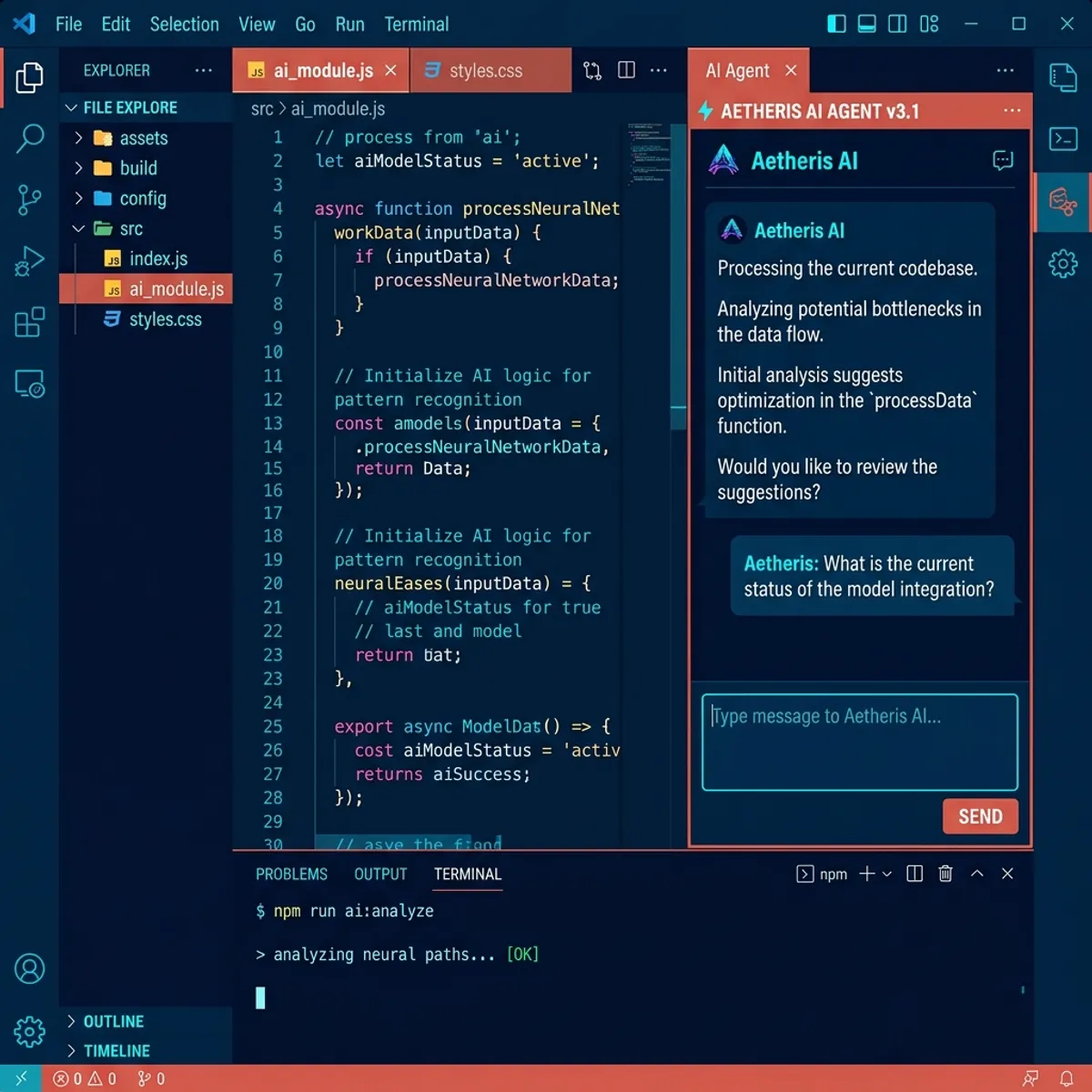 Cursor AI Workspace showing Agents Window and Code Editor
2. Composer 2.5: Your Very Own AI Developer
In May 2026, Cursor launched Composer 2.5. This is not a minor update; it is going to completely change the way you work.
How Does Composer Work?
Previously, we used to tell AI, "Write a function to sort an array." But now, with Composer 2.5, you can say: "Create a complete Authentication module using JWT, connect it to my existing User database, and write unit tests for it."
Composer 2.5 breaks down these massive Tasks into smaller Sub-tasks, creates the files itself, writes the code, and if any Error occurs, it automatically fixes it. All you have to do is Review its work.
Long-horizon Tasks
The biggest feature of Composer 2.5 is its "Long-horizon task execution." This means it can perform long-running tasks without losing Context. It has taken huge strides in Reliability and Inter-agent communication. Suppose you are building an entire E-commerce platform from scratch; this AI agent can work with you on that project for weeks and will not forget your older files.
3. Cursor Automations and the Agents Window
Now let's talk about the biggest game-changer of 2026: Automations. Cursor has integrated Automations directly into the Agents Window.
Multi-repo Automations
Are you working on a project where the Frontend is in one repository and the Backend is in another? Previously, giving AI context for both was very difficult. But now, with Multi-repo Automations, your AI Agents can simultaneously Analyze multiple Codebases and make changes across them.
For example, if you change an API Endpoint in the Backend, the Agent will automatically go into the Frontend repository and update the API Calls! This is a massive blessing for large development teams using Microservices Architecture.
 Multi-repo Automations Interface showing Frontend and Backend repos connected
No-repo Automations
This feature is even more amazing! Agents no longer even need a Code Repository to function. You can connect them to External Tools and Signals. Suppose a crash report comes into your Slack channel; the No-repo Automation will read that report, pull data from your Analytics tool, and provide you with a detailed report, all without writing any code.
4. Shared Canvases: The New Way of Team Collaboration
When you are working with AI, sometimes you build something you immediately want to show your team. Shared Canvases is exactly for this purpose.
Suppose your AI Agent has prepared a new Dashboard or Report. With a single click, you can create a "Live Interactive Snapshot" of it and share the Link with your team. Your team can view that Dashboard directly in their Browser and provide feedback, without even having Cursor installed. This is a brilliant tool for Client Presentations and Team Meetings.
5. MCP (Model Context Protocol) Support
If you are developing software in 2026, you have definitely heard the name MCP. Cursor has now added Native MCP Support.
MCP means your AI Assistant is no longer restricted to your local code. You can directly connect it to your Database (like PostgreSQL, MongoDB), Notion Documentation, or any Internal APIs.
What are the Benefits?
Suppose you need to write a database query but don't remember the table structure. Through MCP, your Cursor AI will directly read the database Schema and write a perfectly accurate SQL Query for you. Similarly, if your company's coding guidelines are written on Notion, the AI will read those guidelines and write code exactly in that style.
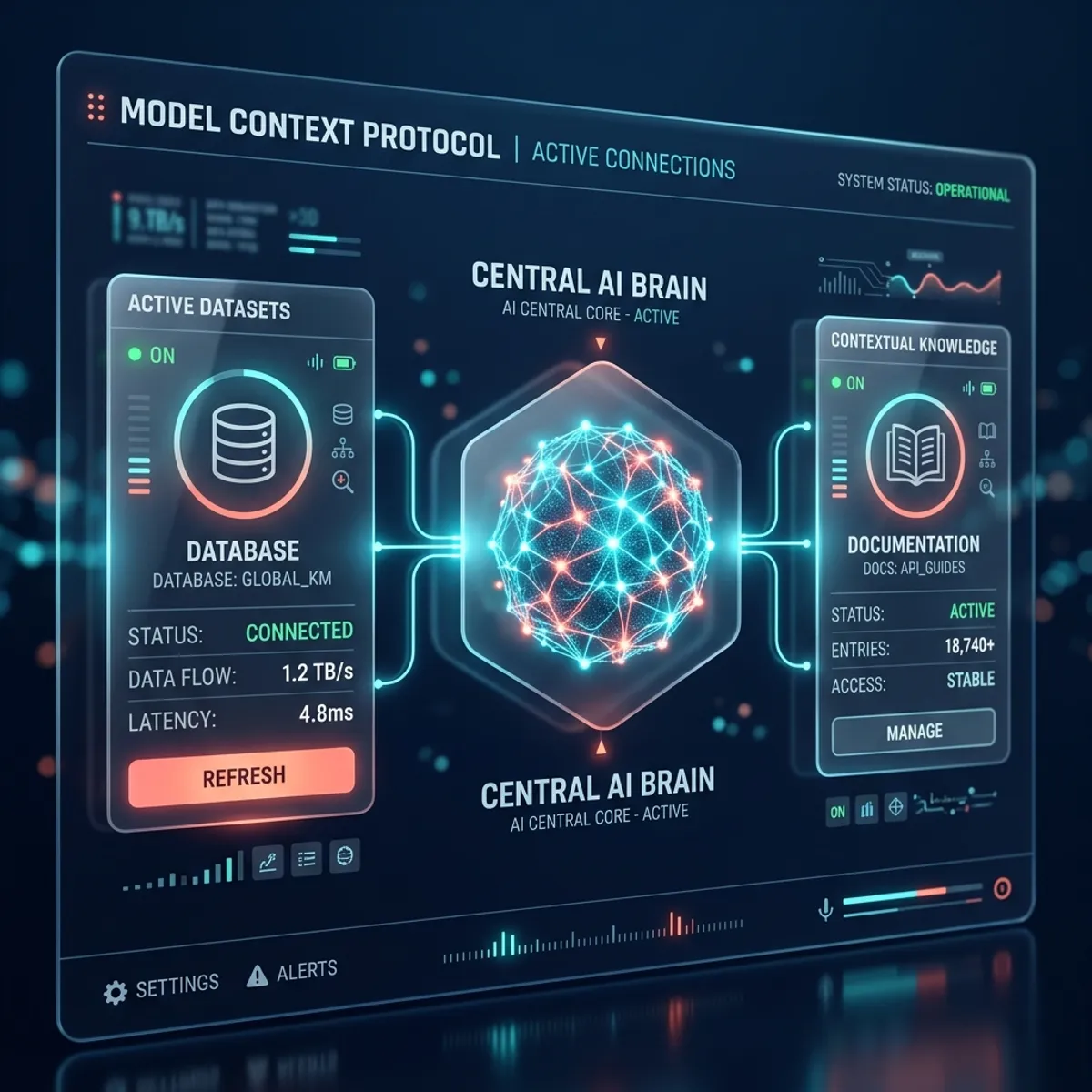 MCP Configuration Screen showing connections to Notion and PostgreSQL
6. Cursor 3 and the Unified Workspace
The launch of Cursor 3 made it explicitly clear that the future belongs to Autonomous Cloud Agents. Your IDE is no longer just a place to write code; it is a Unified Workspace where you manage Agents.
You can write your code on one side, have Agents running Tests for you on another, and yet another Agent simultaneously updating your Documentation. This is truly the next level of Multi-tasking.
7. Security Updates: Keeping Yourself Safe
In early May 2026, a highly important Security Update patch was rolled out for Cursor 2.5. A vulnerability was discovered where a Malicious Git Repository could trigger Arbitrary Code Execution on your system.
How to Ensure Your Safety?
- Always ensure you are using the latest version of Cursor (2.5 or above).
- Avoid opening unknown or Untrusted Repositories from the internet directly into your Cursor environment.
- Always use platforms like CodePreviewer.com where all Tools are 100% Client-side, meaning your data is never saved on any Server!
8. How to Set Up Cursor AI in Your Project?
If you are still on an older IDE and want to switch to Cursor, it's very easy:
- Download: Download Cursor from its official website.
- Import: Upon opening it for the first time, it will ask if you want to import VS Code Extensions. Click "Yes."
- Login: Log in with your account.
- Enable AI Features: Go to Settings and turn on Composer and Automations.
- Open Project: Open any of your projects and press
Ctrl + K(orCmd + Kon Mac) to start giving instructions to the AI directly!
9. Cursor AI Keyboard Shortcuts You Must Know
To speed up your workflow, you should make these Shortcuts a habit:
- Ctrl + K / Cmd + K: This is the most frequently used shortcut to write or edit code. Pressing it opens a prompt where you can specify what changes you want.
- Ctrl + L / Cmd + L: This opens the chat window. If you want to understand what a code block means or ask a question, simply select the code and press this shortcut.
- Ctrl + I / Cmd + I: Opens Composer mode. Use this shortcut when you need to build a large project or create multiple files simultaneously.
- Alt + Enter: Use this to accept any code generated by the AI into your file.
10. Customizing AI Models in Cursor
Cursor AI is not limited to a single Model. You can switch Models based on your specific needs.
- If you want to perform quick, small tasks, you can use Claude 3 Haiku or GPT-4o-mini.
- If you are working on a very complex problem, you can leverage heavy Models like Claude 3.5 Sonnet or GPT-4o.
- In the new 2026 update, you can even connect Local Models via Ollama, making your privacy even stronger.
11. Best Practices
To get the most out of Cursor AI, always remember these key points:
- Provide Clear Prompts: The clearer and more detailed instructions (Context) the AI receives, the better its output will be. Always specify what you want and what you don't want.
- Always Perform Code Reviews: AI is incredibly smart, but it can still make mistakes (Hallucinations). Therefore, always Review the code yourself before deploying it to production.
- Work in Small Steps: Instead of handing over massive Tasks all at once, break them down into smaller pieces for the AI to handle. This drastically reduces the chances of errors.
- Read the Documentation: Cursor's documentation is fantastic. Keep checking it from time to time so you stay updated on new features.
Conclusion
The Cursor AI 2026 updates have proven that the future of coding is no longer just about Typing, but Directing. With features like Composer 2.5, Multi-repo Automations, and MCP Support, a single developer can now do the work of an entire team.
And yes, always remember that privacy is paramount while coding. All the Tools available on our website, CodePreviewer.com, are completely Client-side, meaning none of your data is ever saved on our servers.
So give Cursor AI a try today and increase your coding speed by 10x! If you have any questions, be sure to ask in the comments below. Happy Coding!