
The world of software development has undergone a massive, fundamental transformation in 2026. Software engineers no longer spend hours sitting at a keyboard typing out syntax line by line. Instead, they are mastering the powerful art of "Vibe Coding." Vibe Coding is a modern and highly efficient development approach where a human works in complete harmony (or "vibes") with Artificial Intelligence (AI). You describe your logical concepts, UI models, and complex business workflows in simple English, and the AI translates those ideas instantly into optimized, production-ready source code.
At the very front of this technological revolution is Cursor AI. Cursor is essentially a highly optimized, custom-forked editor built on top of Visual Studio Code (VS Code). Its unmatched advantage lies in how deeply integrated its AI capabilities are. From generating basic boilerplates to architecting complete relational schemas and self-debugging intricate errors, Cursor AI accelerates your shipping speed by up to 10x.
Step 1: Setup and Migration from VS Code
If you are already familiar with the Visual Studio Code environment, transitioning to Cursor AI is incredibly frictionless. The Cursor engineering team has designed a migration flow that takes less than a minute.
1. Download and Installation
Head to the official Cursor website and download the 2026 package corresponding to your operating system (available on Windows, macOS, and Linux). The client installs like a standard desktop utility.
2. One-Click Settings Import
Upon opening Cursor for the first time, you are prompted with a migration dialogue. Clicking "Import from VS Code" instantly transfers all your custom user settings, theme palettes (like Dracula or GitHub Dark), keyboard shortcuts, and active extensions. Your coding environment will look and behave exactly as you left it.
3. Activating Advanced Coding Models
Cursor allows you to cycle through various industry-leading Large Language Models (LLMs) depending on the complexity of your task.
- For UI layouts and frontend state management, Claude 3.5 Sonnet (or the latest variant) provides pixel-perfect designs.
- For deep backend routes and complex algorithmic loops, GPT-4o performs exceptionally well.
You can open the settings panel with
Ctrl + Shift + Jto establish your default runtime models.
4. Creating the Critical .cursorrules File
Establishing clear guidelines is crucial. Create a file named .cursorrules in your project's root folder. In this file, write instructions such as:
- Always enforce functional React components using TypeScript.
- Utilize Tailwind CSS for all utility styling.
- Do not use the 'any' type in TypeScript; always establish explicit interfaces.
Whenever Cursor initiates a code generation task, it will strictly parse this ruleset first, drastically reducing hallucinations. Compare this custom workflow with our cursor-vs-vs-code-2026 manual.
 Vibe Coding Interface inside Cursor Composer
Step 2: Mastering the Composer for Multi-File Edits
The single most powerful and industry-disrupting feature of Cursor is the Composer. While older, basic AI plugins could only suggest lines within a single open file, Composer processes your entire directory structure to execute complex multi-file updates simultaneously.
Inline Edits (Ctrl + K / Cmd + K)
To refactor a specific function, select the code block and press Ctrl + K. A search prompt will appear.
Type an instruction like: "Make this checkout function asynchronous and add a try-catch block to handle Stripe validation errors."
Cursor will execute the change locally and present a clean Diff View (red/green additions and deletions) for you to review and press Enter to commit.
Full Composer Mode (Ctrl + L / Cmd + L)
When you are building entire applications or complex features from scratch, initiate the Full Composer. For example, if you want to implement database authentication, prompt: "Construct a full user registration flow including Login, Signup, and Reset Password pages. Connect it to Supabase and styled with Tailwind CSS."
The AI will spin up threads to execute the following tasks:
- Generate
Login.tsxandSignup.tsxviews in your components directory. - Draft secure helper functions inside
auth.ts. - Modify your global router configurations to handle private routes, mimicking workflows shown in our build-full-stack-app-with-bolt tutorial.
Step 3: Context-Aware Development & The @ Symbol
An AI model is only as smart as the context it is fed. Cursor AI addresses this by providing native, context-sharing handles through the @ symbol, preventing you from manually copying and pasting files into a chat.
@Files: Directs the model's focus to a single, specific script (e.g.,@App.tsx).@Codebase: Commands Cursor to perform a semantic vector search across your entire codebase directory. For example: "@Codebase which components utilize the global theme provider?"@Docs: Instantly indexes official libraries and documentation pages directly into the chat context. This ensures that even the most recent framework updates are respected.@Web: Enables real-time web searches to pull fresh troubleshooting answers directly from StackOverflow or developer blogs.
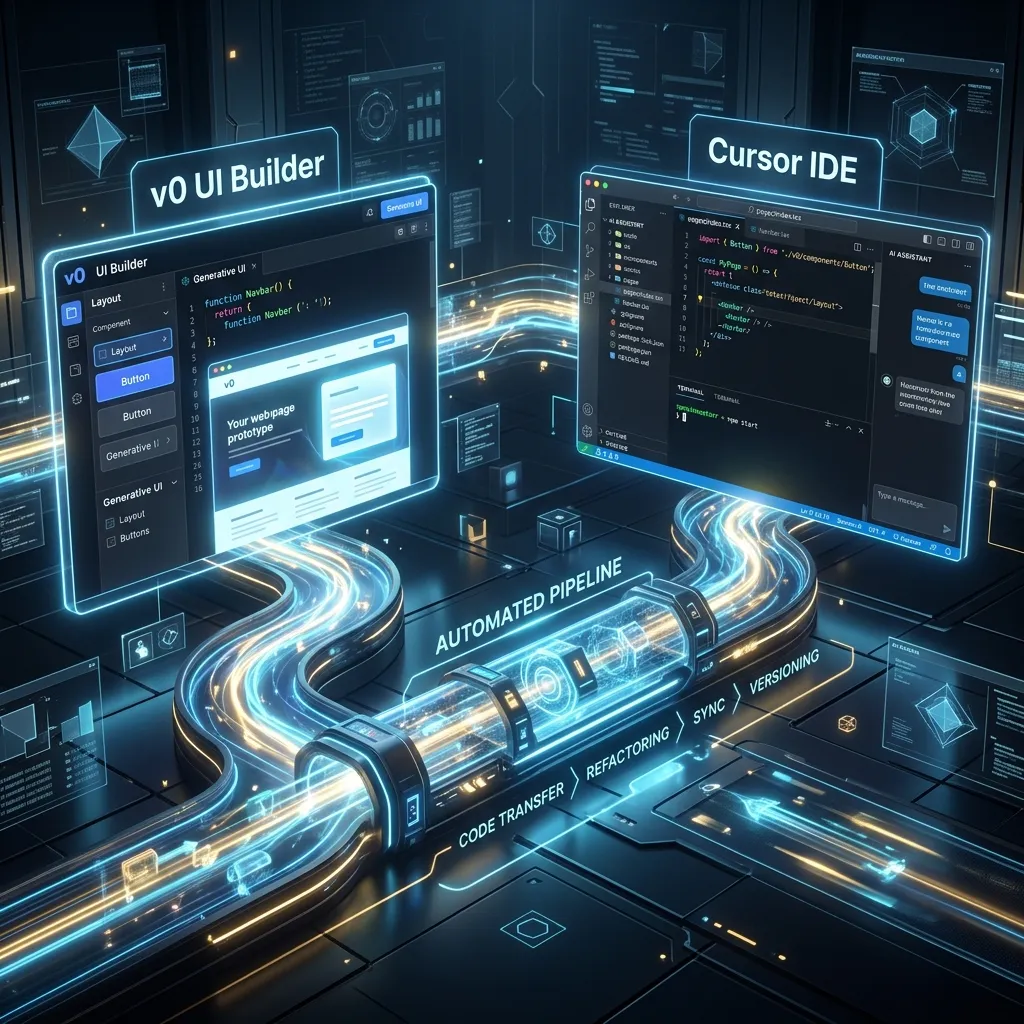 v0 and Cursor AI Integration Workflow
Step 4: AI-Assisted Debugging & Terminal Self-Correction
Debugging has historically been the most tedious, time-consuming aspect of software development. Cursor AI changes this completely by automating error diagnosis.
1. Terminal Auto-Debugging
If a compiler error or compilation failure triggers in your terminal window, you no longer need to research the logs. Click the "Debug with AI" button embedded directly inside the terminal console. Cursor scans the build logs, maps the root issue to your active files, and generates a correction suggestion instantly.
2. Linting Self-Repair
When TypeScript flags syntax or type mismatches (denoted by red squiggly lines), hover over the issue and select "Auto-fix with AI". The editor repairs the structural mismatch instantly, teaching you the underlying rationale. Read more about this concept in our debugging-for-non-coders-ai-code overview.
Step 5: The "Human-in-the-Loop" Guidelines
Despite the incredible power of Vibe Coding, maintaining a "Human-in-the-Loop" architecture is absolutely vital. Vibe coding does not mean abandoning critical thinking or delegating all architectural authority to an LLM. You are the Director; the AI is your camera operator.
Enforce these developer safety standards:
- Meticulous Diff Review: Never click
Acceptwithout verifying the diff view. Blindly accepting multi-file edits is a guaranteed way to accumulate massive technical debt. - Security & API Keys: AI models can occasionally output insecure code, such as hardcoding environment variables or writing unprotected API routes. Double-check your Supabase Row-Level Security (RLS) rules manually.
- Modular Code Structure: Keep components highly decoupled. Instruct the AI to write small, single-purpose utilities rather than monolithic structures.
Conclusion & Future Outlook
Vibe Coding inside Cursor AI has solidified itself as the gold standard of software engineering in 2026. By removing the repetitive syntax barrier, developers are empowered to transition into creative architects, focusing on UI design, system security, and product-market validation.
Install Cursor today, draft your first custom prompt, and step into the future of prompt-driven software design!
[!TIP] All developer tools available on CodePreviewer.com operate 100% client-side inside your browser sandbox. None of your source code, environment variables, or private API keys are ever stored on our servers, keeping your IP safe.
Frequently Asked Questions (FAQs)
Q1: Is Cursor AI suitable for large corporate codebases?
Yes! Cursor is being actively adopted by large engineering organizations. Its "Privacy Mode" ensures that none of the workspace code or proprietary structures are uploaded to remote servers or utilized in training future iterations of AI models.
Q2: What is the main difference between VS Code with Copilot and Cursor AI?
VS Code with GitHub Copilot is a traditional editor equipped with a autocomplete plugin. Cursor AI is a custom-architected application where AI is a core pillar. Composer and context-aware indexing allow Cursor to execute complex multi-file edits that Copilot cannot replicate.
Q3: How do I resolve infinite compilation loops in Cursor?
If Cursor generates code that triggers compilation errors, and then generates corrections that create new errors, step back. Revert the file to its last working state, refine your prompt with precise boundaries, and tackle the feature in smaller, iterative steps.
Q4: Can I use Cursor offline?
Basic coding and text formatting are supported offline. However, the AI Composer, Web searches, and file indexing integrations require an active internet connection to communicate securely with Cursor's processing servers.